UTC and SMS order deadlines: avoid time-zone mistakes
Read order expiry timestamps, distinguish a countdown from current order state and record unambiguous times when contacting support.
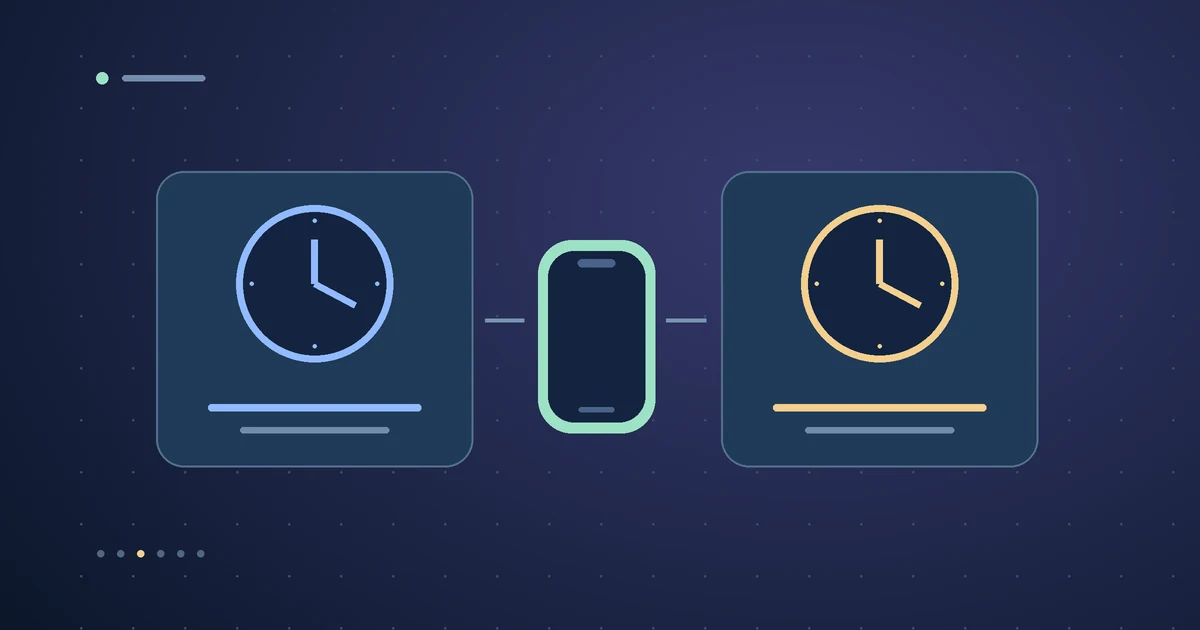
Your device may show evening while an API response shows an earlier hour. Events recorded in different time zones can describe the same moment. For a short receiving window, compare timestamps rather than clock digits alone.
Identify the time zone
Z denotes UTC; an explicit offset such as +03:00 denotes another zone. For example, 12:00 UTC and 15:00 with that offset refer to the same moment. This is a reading example, not the deadline of any actual order.
Do not apply an offset twice when an application already displays local time. For Lucky Monkey API orders, use expires_at and the documentation rather than assuming every order has an identical duration.
Separate the countdown from order state
A background tab may have an outdated countdown, and a device clock can be wrong. If the display differs, check the current order state and expiry timestamp. Changing the device clock does not extend a server-side deadline.
- Keep the original timestamp including its zone.
- Compare it with current time in the same zone.
- Do not assume a new request extends an old window.
- Recheck state when the countdown and page disagree.
Describe timing clearly
Give support the order ID, timestamp and zone instead of “it disappeared in the evening.” Leave the message code out.
Preserve timestamps in your integration
A developer should retain the server timestamp and use a time-zone-aware library for display conversion, including date-boundary tests in staging. Read about number and code expiry and consult the API documentation.